
Microsoft’s Local Administrator Password Solution (LAPS) is a powerful tool, we all know what it does. Legacy LAPS has been out there helping thousands of admins managing local admin passwords. But this new version is really cool. It allows saving password in encrypted form which previous version lacked. It also integrates well with Entra ID/Intune/MEM for your hybrid and Entra ID joined devices. Here is quick mention of what you get, how you configure it and what to watch out for while implementing it.
Features for Entra ID
- Store passwords in Azure (on Azure device objects)
- Cloud based management experiance
- Passwords can be retrieved via Microsoft Graph as well as Azure Portal
- Settings configuration via Microsoft Endpoint Manager portal (MEM Portal)
- On-demand password rotation from MEM Portal
- Supports Entra ID joined as well as hybrid joined devices.
- Automatic password reset on use (client-driven)
Features for On-prem AD
- New Group Policy object and AD schema attributes
- Account name stored side-by-side with the password
- Support for password encryption (requires 2016 domain fuctional level). In legacy LAPS password was stored in clear text in a confidential attribute in AD, security of this password depended only on proper configuration of ACLs. In new LAPS, passwords are protected with both ACL as well as permissions to allow password decryption.
- Based on Data Protection API (uses AES-256 encryption) – encrypt passwords against a configured AD user/group via GPO setting. Multiple groups cannot be used. Once an AD Group is used even Domain admins cannot decrypt the password.
- Keys stored in Domain Controllers
- Password history support (upto 12 passwords). Usefull in scenarios where devices are restored from old backups.
- Support for managing DSRM account passwords on Domain Controllers.
- New powershell module
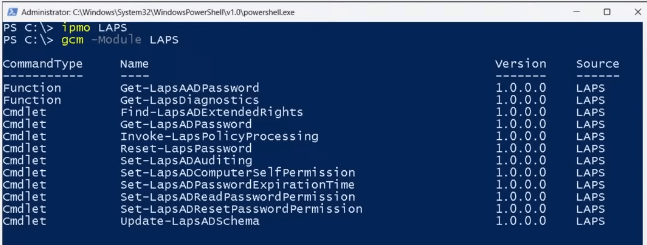
- New LAPS property page in ADUC snap-in

- Automatic password reset on use (client-driven)
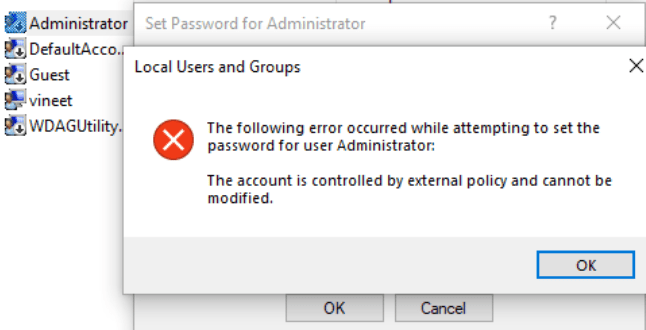
- Account tempering protection. LAPS managed account password cannot be reset manually.
Device join state restrictions
- Microsoft Entra ID joined devices can back up passwords only to Microsoft Entra ID.
- AD joined devices can back up passwords only to Windows Server Active Directory.
- Hybrid-joined devices can back up their passwords either to Microsoft Entra ID or to on-prem AD but not both at the same time.
- Windows LAPS doesn’t support Microsoft Entra workplace-joined clients.
- A dedicated event log channel for better monitoring and auditing.
Password policy management
- Password policies can be managed by either Microsoft Endpoint Manager, or on-prem Group Policy
Supported clients for “New” LAPS
- Windows 10 (April 11, 2023—KB5025221) and above
- Server 2019 and above
Licensing requirements
- Windows LAPS feature itself is available for free in all supported Windows platforms.
- Using on-premises AD for storing passwords require no extra licensing.
- Using Entra ID for storing passwords is allowed with a Microsoft Entra ID Free or higher license.
- Other Azure or Intune related features may have other licensing requirements.
Configuration recommendations
- Entra ID joined devices: Use Microsoft Intune.
- Active Directory joined devices: Use Group Policy.
- Entra ID hybrid joined devices that are enrolled with Intune: Use Intune.
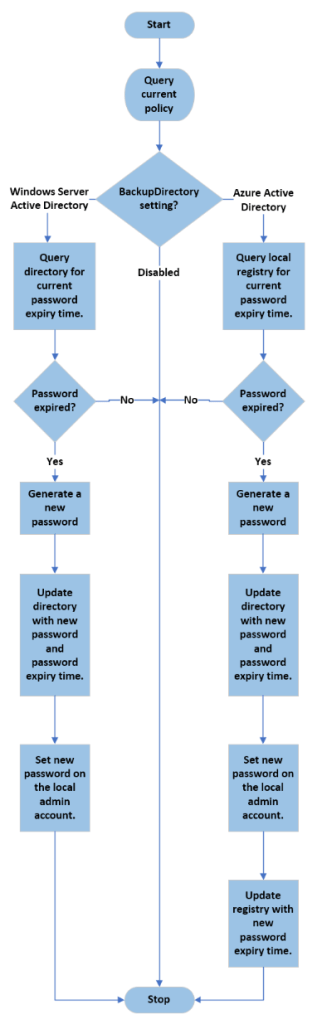
Note: The GPO setting “Configure password backup directory” controls whether password is to be stored in on-prem AD or Entra ID.
Implementation steps (on-prem AD implementation)
- Upgrade domain function level to 2016
- Install LAPS powershell module on one of the DC.
- Run powershell cmdlet Update-LapsADSchema to intriduce LAPS schema in your domain
- Run powershell cmdlet Set-LapsADComputerSelfPermission -Identity “DN of OU” to set appropriate permissions on computer objects in the OU to let LAPS update the changed password.
- Setup Permissions
- Setup GPO setting “Policies\Administrative Templates\System\LAPS\Configure authorized password decryptos” to control the specific group who’s members will be authorized to decrypt and read passwords.
- Run Powershell command to setup “password read” ACLs Set-LapsADReadPasswordPermission -Identity “DN of OU” -AllowedPrincipals “GroupName”
- To specify who can read and set the “password expiration” time attribute run cmdlet Set-LapsADResetPasswordPermission – Identity “DN of OU” -AllowedPrincipals “GroupName”
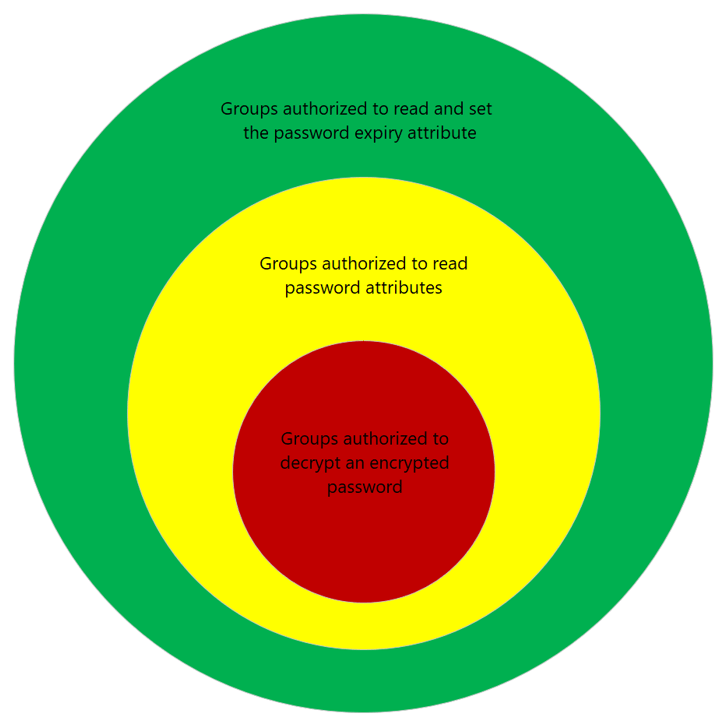
The diagram illustrates the suggested Windows Server Active Directory password security layers and their relationship to each other.
- Configure remaining GPO settings to complete this implementation. The settings are self explanatory.

Implementation steps (Entra ID implementation)
- Upgrade domain function level to 2016
- Install LAPS powershell module on one of the DC.
- Run powershell cmdlet Update-LapsADSchema to intriduce LAPS schema in your domain
- Configure GPO setting “Configure password backup directory” to Azure AD.
- Login to Entra ID portal, go to Devices>Device Settings> and enable below setting

- Configure remaining LAPS GPO settings to control other aspects of local admin passwords.
- The password will be stored in Entra ID and may be retrieved in Entra ID portal, using LAPS powershell module or using Microsoft graph explorer.
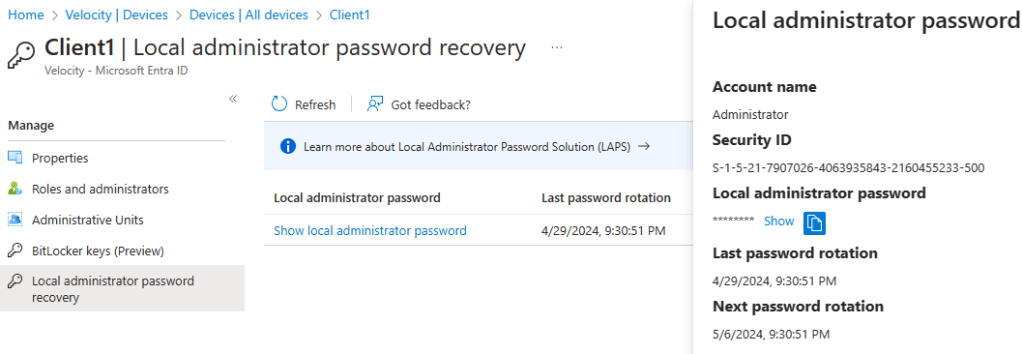
- By default, Global admins, Cloud Device admins and Intune admins are granted device.LocalCredentials.Read.All, custom roles or administrative units to authorize local administrator password recovery can also be configured.
Functional level upgrade to 2016
This task needs to be performed after proper environment assessment. Although Microsoft says that “the newest domain functional levels and the newest forest functional levels affect only the way that the domain controllers operate together as a group. The clients that interact with the domain or with the forest are unaffected. Additionally, applications are unaffected by changes to the domain functional levels or to the forest functional levels.”
Architecture

The Flow
 A sys admin blog